
Before you begin
- Ensure automatic synchronization has been enabled for your account.
- If automatic synchronization is not enabled, contact Support for assistance.
- Verify that you have permission to view check-in history and reports.
Symptoms
You may experience one or more of the following:
- Recent check-ins are not visible immediately.
- Managers need to perform multiple steps before viewing the latest check-in status.
- Check-in history appears outdated.
Resolve the issue
Option 1: Use automatic synchronization
- Contact Support to enable Auto Sync.
- Auto Sync is configured from backend settings and cannot be enabled directly from the mobile app.
- Wait for the next synchronization cycle.
- Check-in data is automatically refreshed approximately every 15 minutes.
- Open the check-in history screen.
- The latest available check-in records should be displayed after synchronization.
Option 2: Manually synchronize check-in data
- Open the mobile app home page.
- Tap the Sync button in the Shortcuts section.
- The Sync button is represented by a cloud icon.
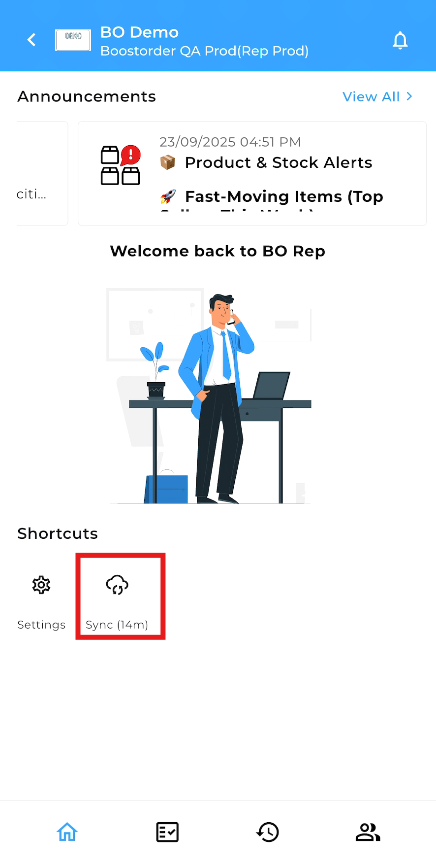
- The Sync button is represented by a cloud icon.
- Wait for the synchronization process to complete.
- Open the check-in history screen and review the latest records.
Confirm the issue is resolved
- Verify that recent sales representative check-ins are displayed.
- Confirm that newly submitted check-ins appear after synchronization.
- Check that the displayed check-in time matches the latest activity.
Additional information
- Automatic synchronization refreshes check-in data approximately every 15 minutes.
- If check-in records do not appear as expected, review any active date or status filters and reset them if necessary.
- Changing the start date is not required when viewing the latest check-in records.
- If Auto Sync is not enabled for your account, contact Support to request activation.