.png?width=610&height=256&name=MicrosoftTeams-image%20(12).png)
Steps to discover document error message
Step 1
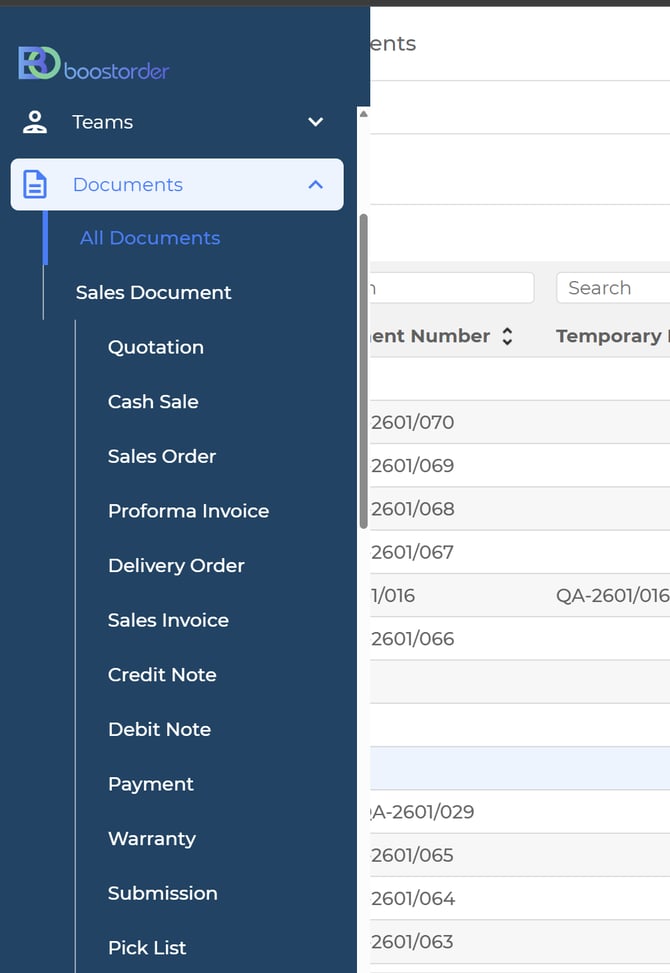
In the admin portal, go to Documents > All Documents, or if you know the document type to search for, eg. Sales Order, then go to Documents > Sales Order.
Step 2
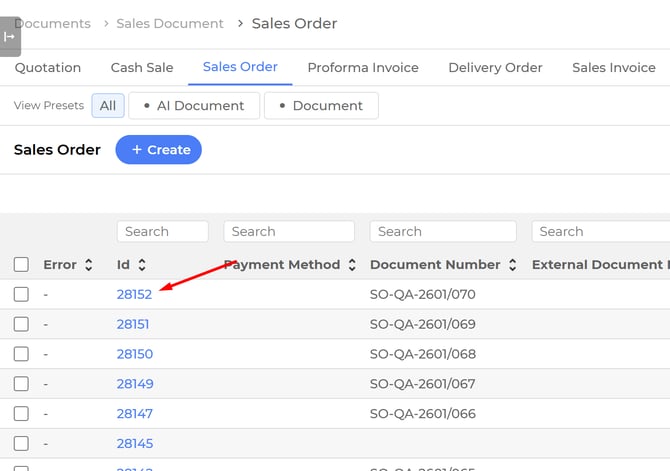
Click on the document id that you want to check why it is not synced
Step 3
On top of the page, check whether it has a red color banner, the banner indicates the document is having error
Note: If the document does not have error, reach out to customer support immediately

Step 4
Click on View Detail

Step 5
Verify the error message and search for solution in the next paragraph
Type of document error in admin portal
Invalid Mapping Error
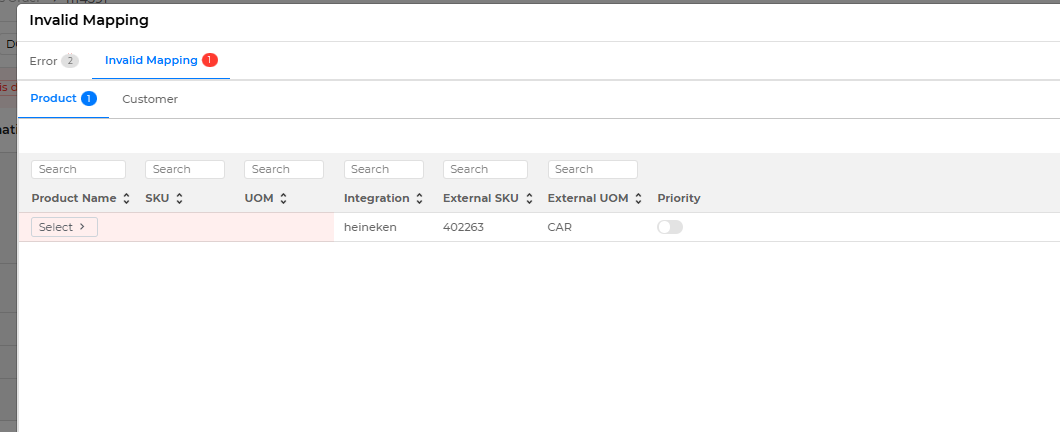
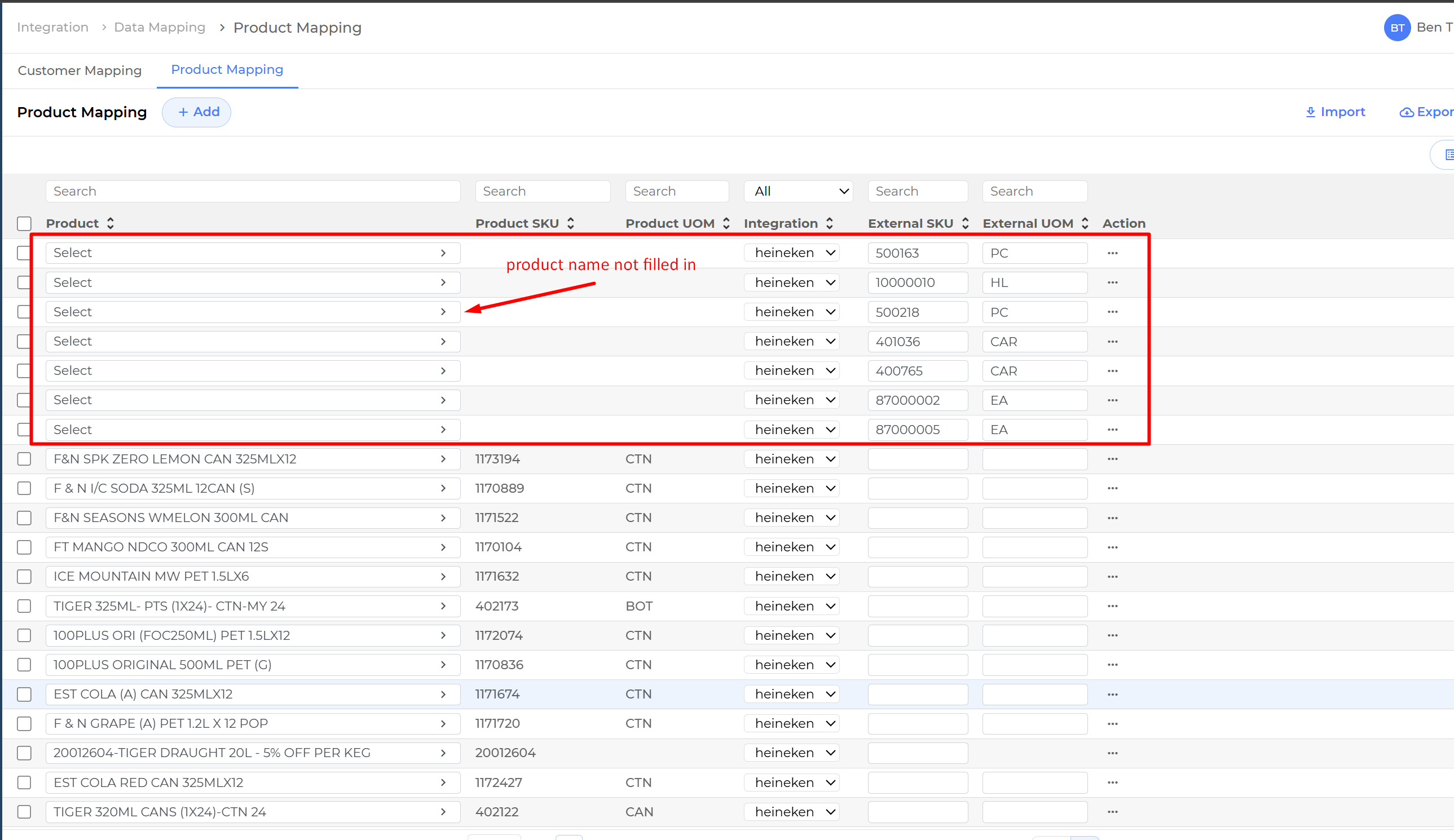
- This is common issue where the person who maintains the product mapping does not maintain it properly
- Most of the time that person does not fill in product name, causing the product mapping to not working properly
- Reach out to the person who maintains the product mapping to maintain it properly by filling in the product name
Selected product does not exist
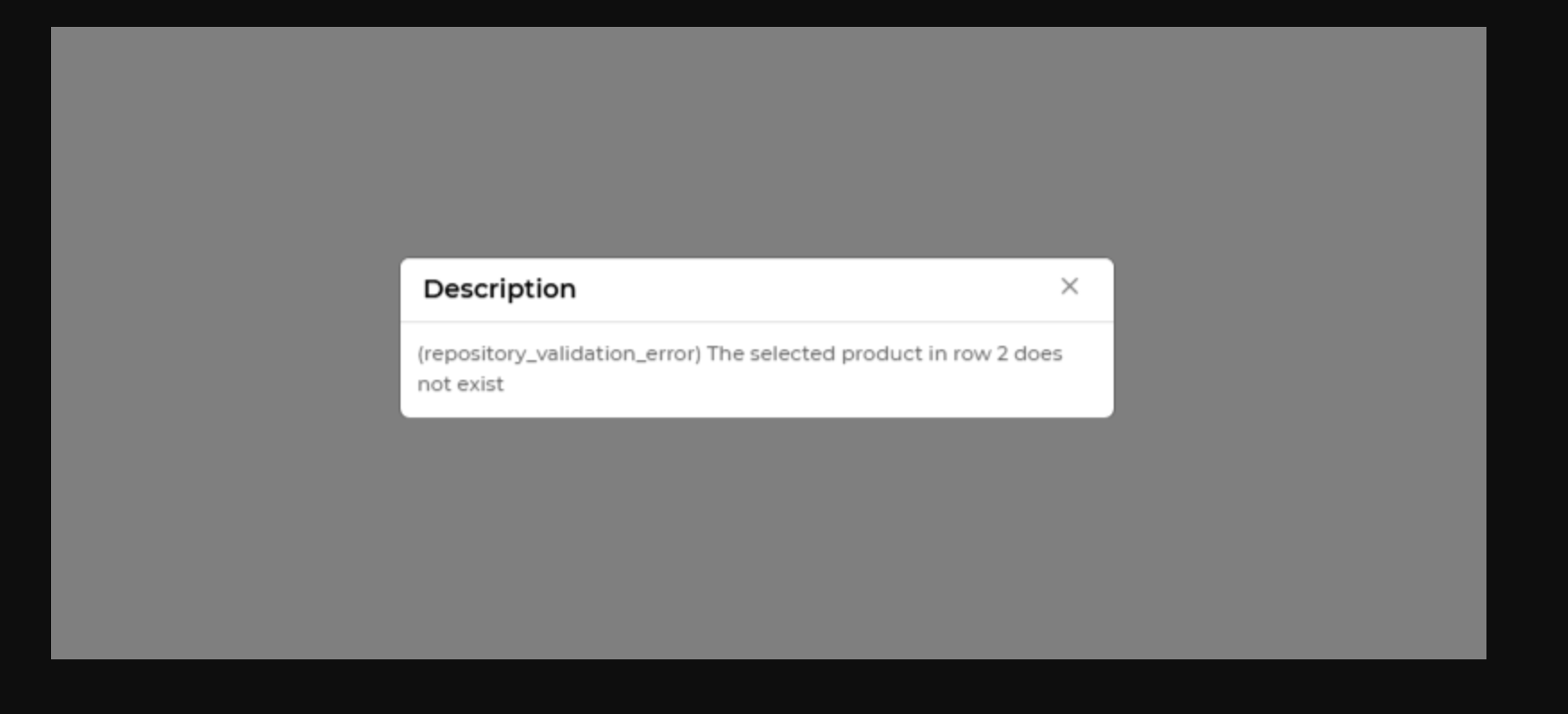
- This error happens when the product is mapped to a product in heineken master that does not exist or not mapped
- In this case, check whether the external uom that is mapped in current site exists in heineken master site
- To resolve this, update the product mapping correctly
- After the update, the order should be resync properly
- If the error still exists, but the product mapping is correct, it is due to the document still not in heineken master
- Contact customer support for further assistance
Note: If the document error is not listed here, do not assume that the error might be related to any of the error listed. Please contact customer support for further assistance