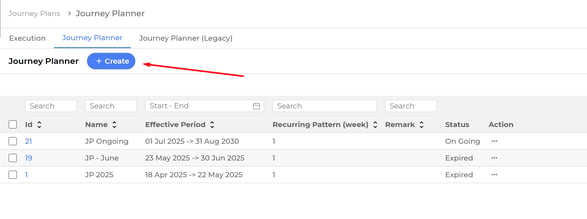
Create Journey Plan
Go to Journey Plans > Journey Planner at the navigation panel.
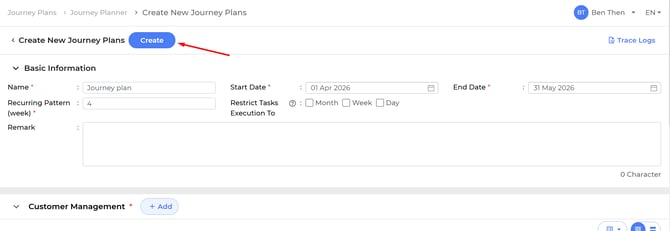
Tap on Create button.
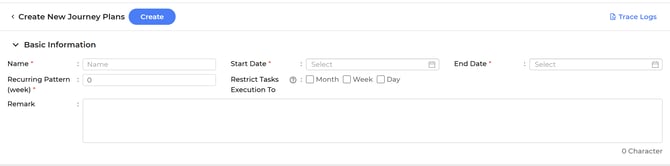
Firstly, fill in the required fields which are marked with asterisk symbol (*), such as
- Name - The name of the journey plan to be created
- Start Date - The date when the journey plan should start
- End Date - The date when the journey plan should end
- Recurring pattern (week) - How many weeks to repeat the task for one sales man
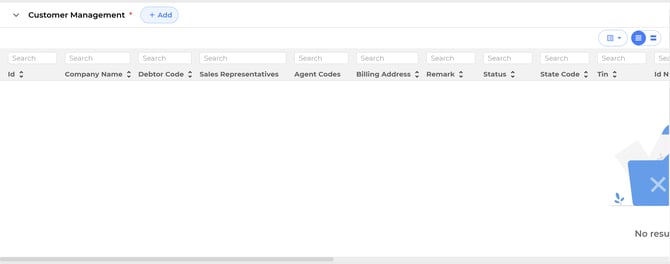
Select the customers to be included in this journey plan.
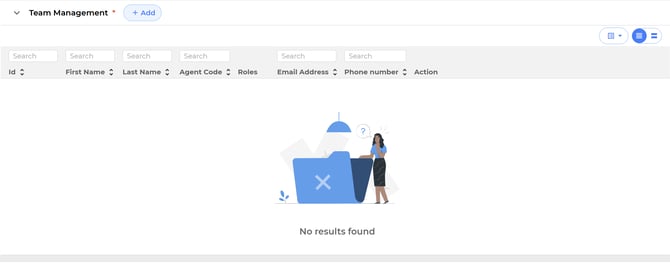
Select the teams to be included in this journey plan, especially for sales man/sales representative.
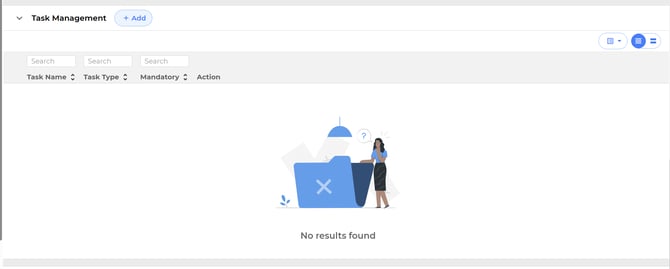
Add the task that is either required/optional to be performed.
After all mandatory fields are added/filled in, click on Create button to create the Journey Plan.
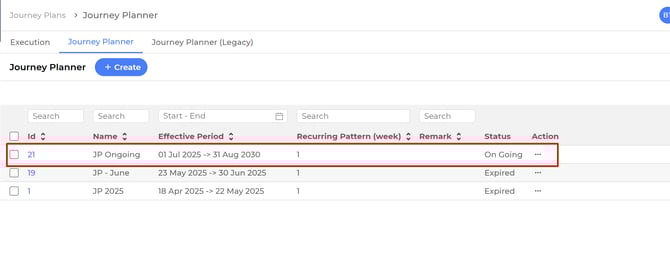
The created journey plan will show at the first row of the page.
Clone a Journey Plan
Go to Journey Plans > Journey Planner at the navigation panel.
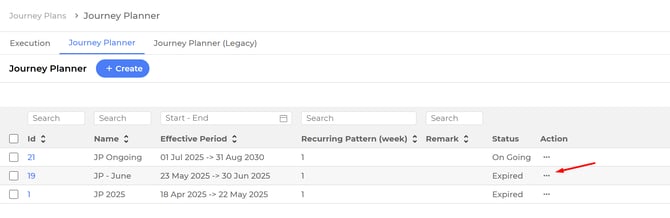
Select 3 dots icon (…) at one of the journey in the Action column.
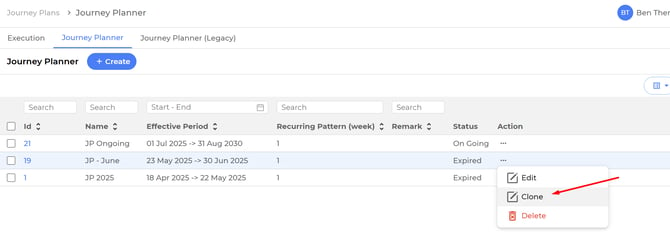
Click on Clone to create a new journey plan with same customers, teams and tasks.
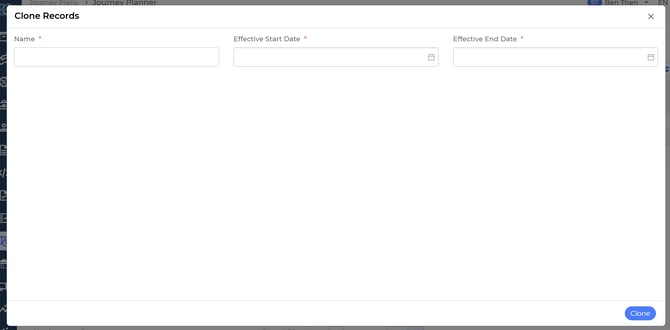
Fill in the required fields, such as
- Name - The name of the journey plan to be created
- Start Date - The date when the journey plan should start
- End Date - The date when the journey plan should end
Click on Clone button.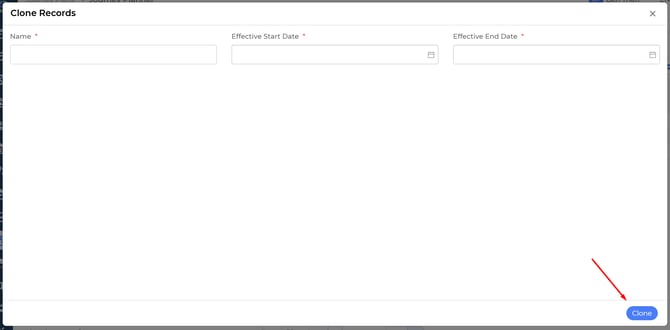
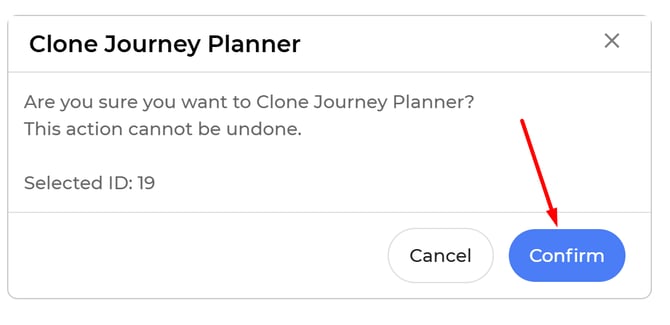
Click on Confirm button.
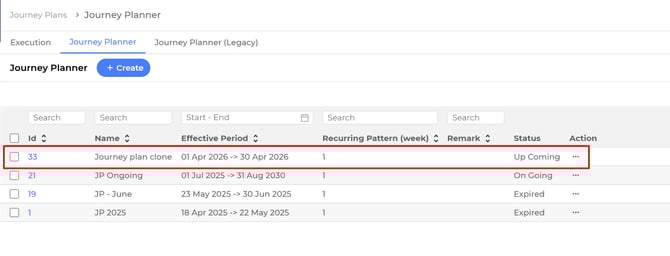
The cloned journey plan will show at the first row of the list.
Update the Journey Plan
Import and Export excel file
Go to Journey Plans > Journey Planner at the navigation panel.
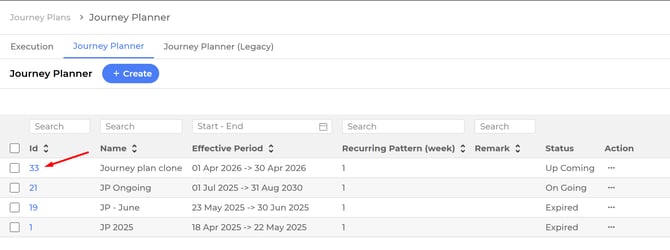
Click on the journey plan id.
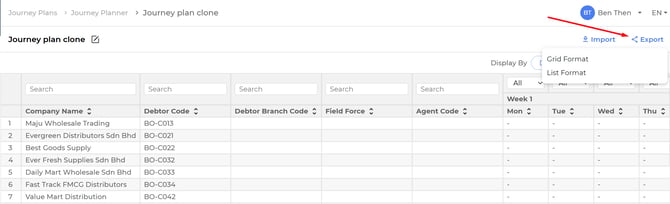
Click on Export button. Depending on self preference and scenario, select the format to be exported.
The journey plan is downloaded in an excel file.
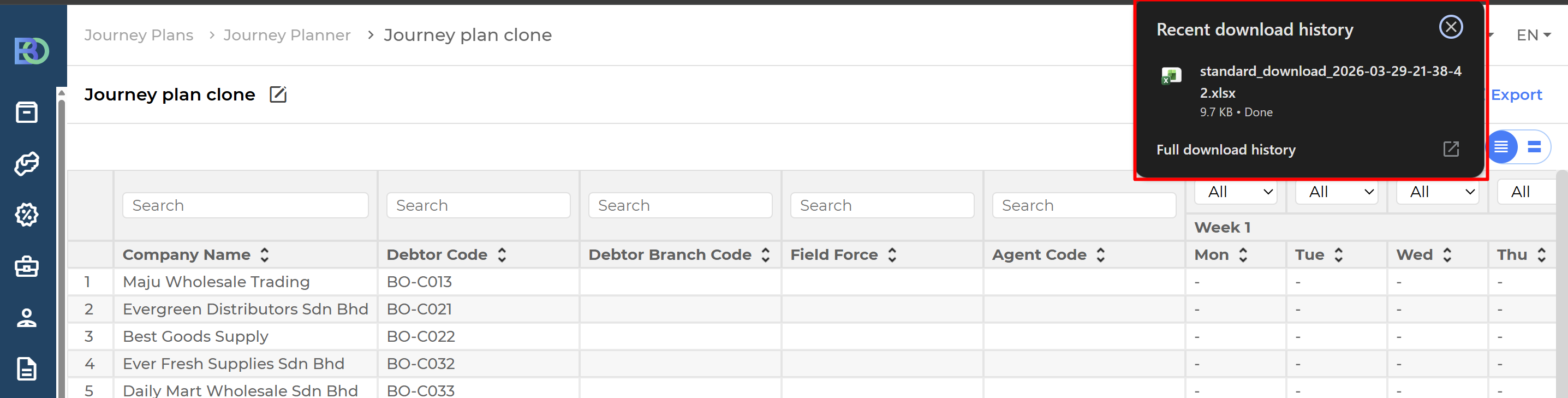
After making changes in the excel file, click on the Import button. Select the format that is selected when exporting the journey plan.

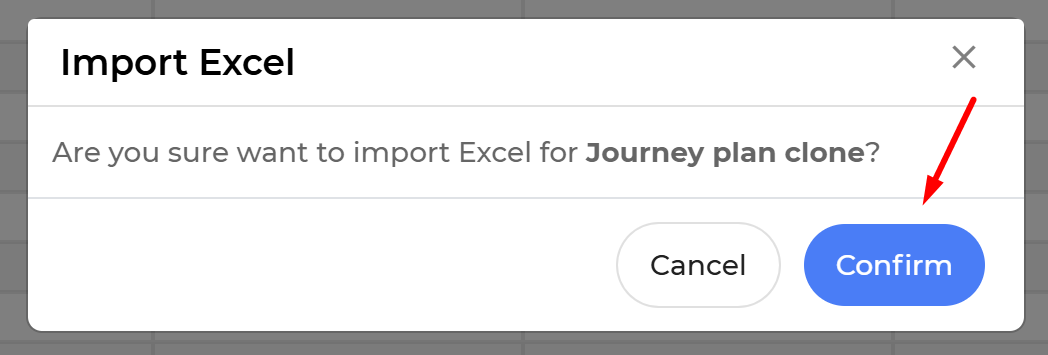
Click on Confirm button.
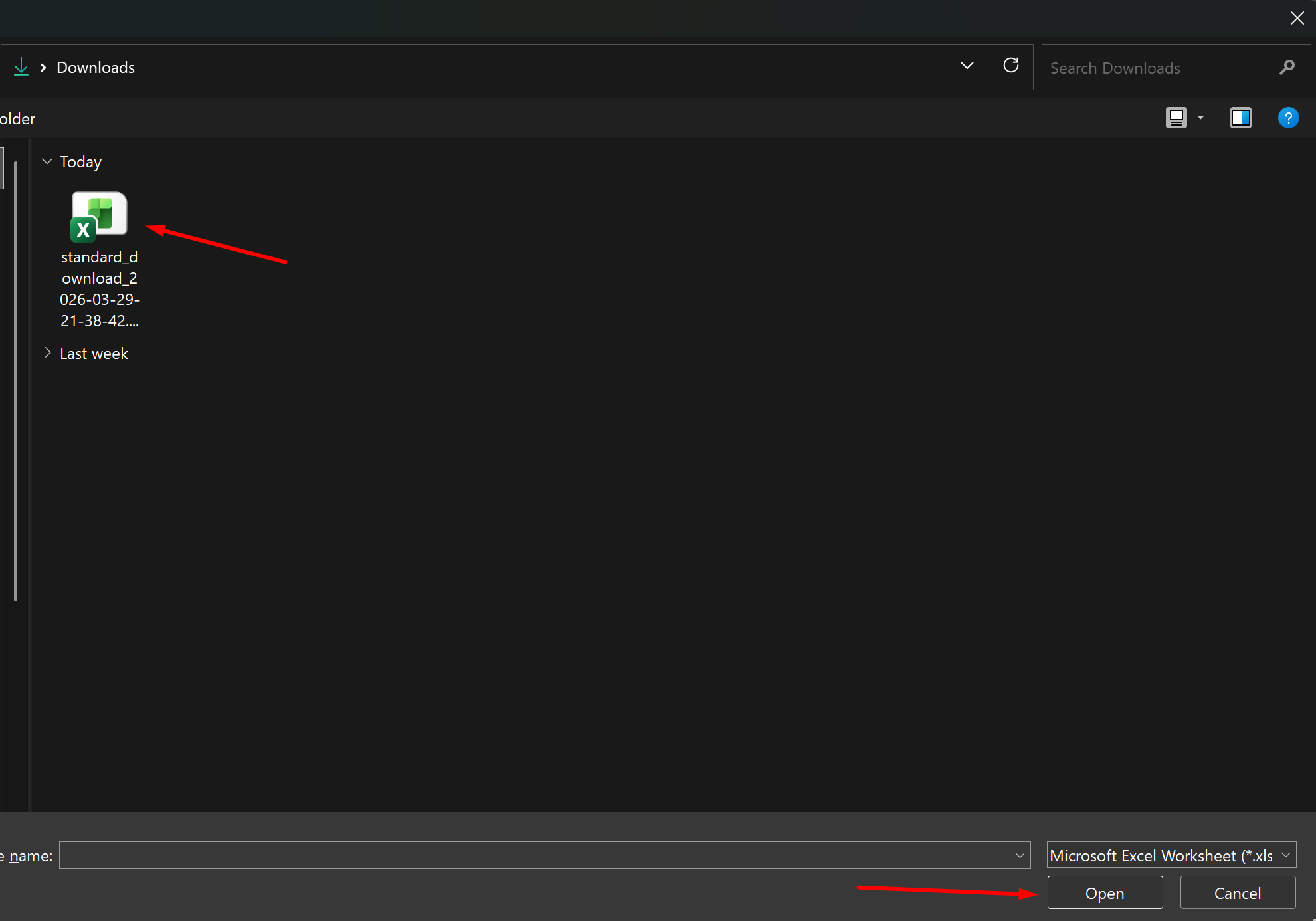
Select the updated excel file in your device, and click on Open button.
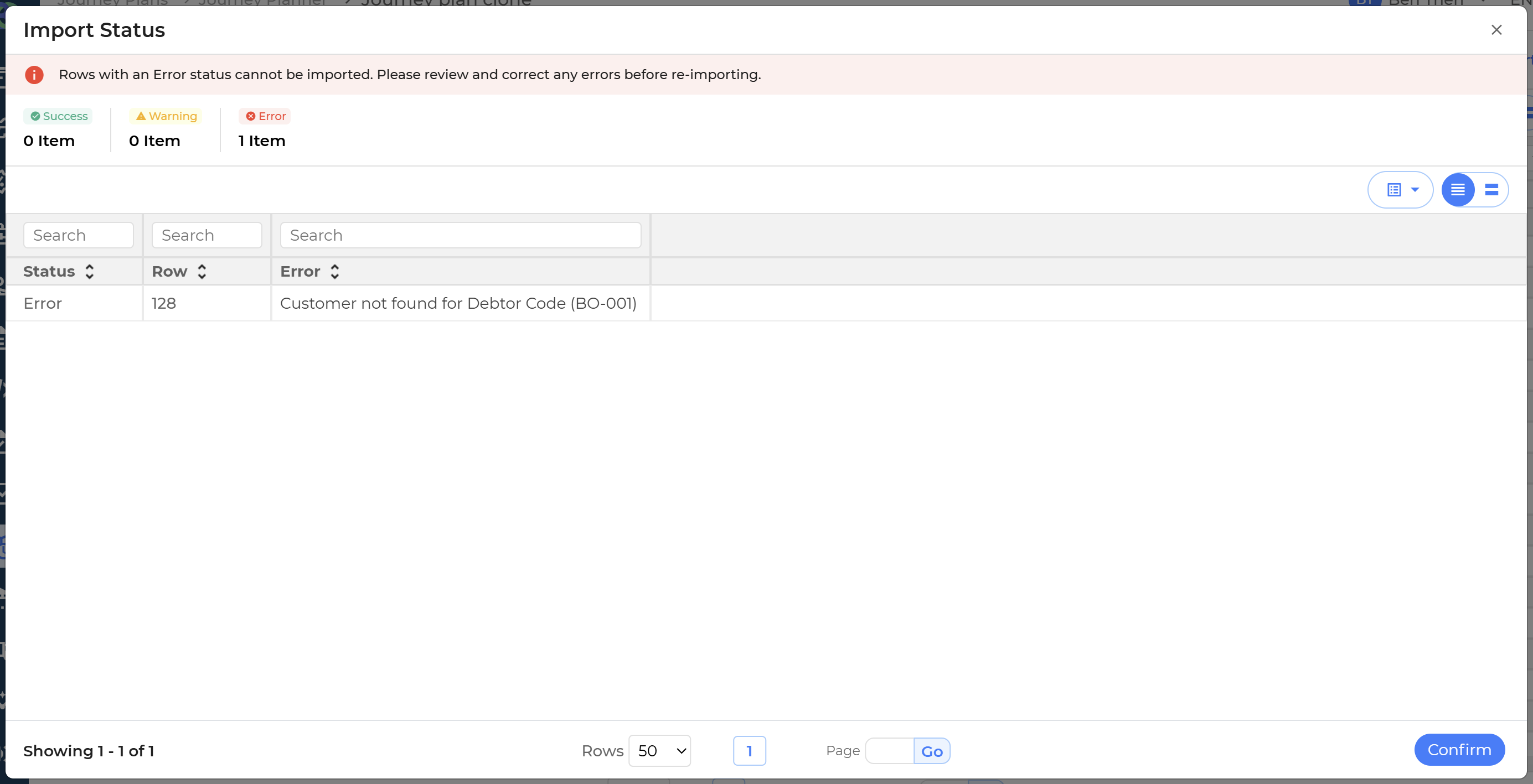
The excel file is then uploaded to the system. The status of the upload will show after the upload is complete.
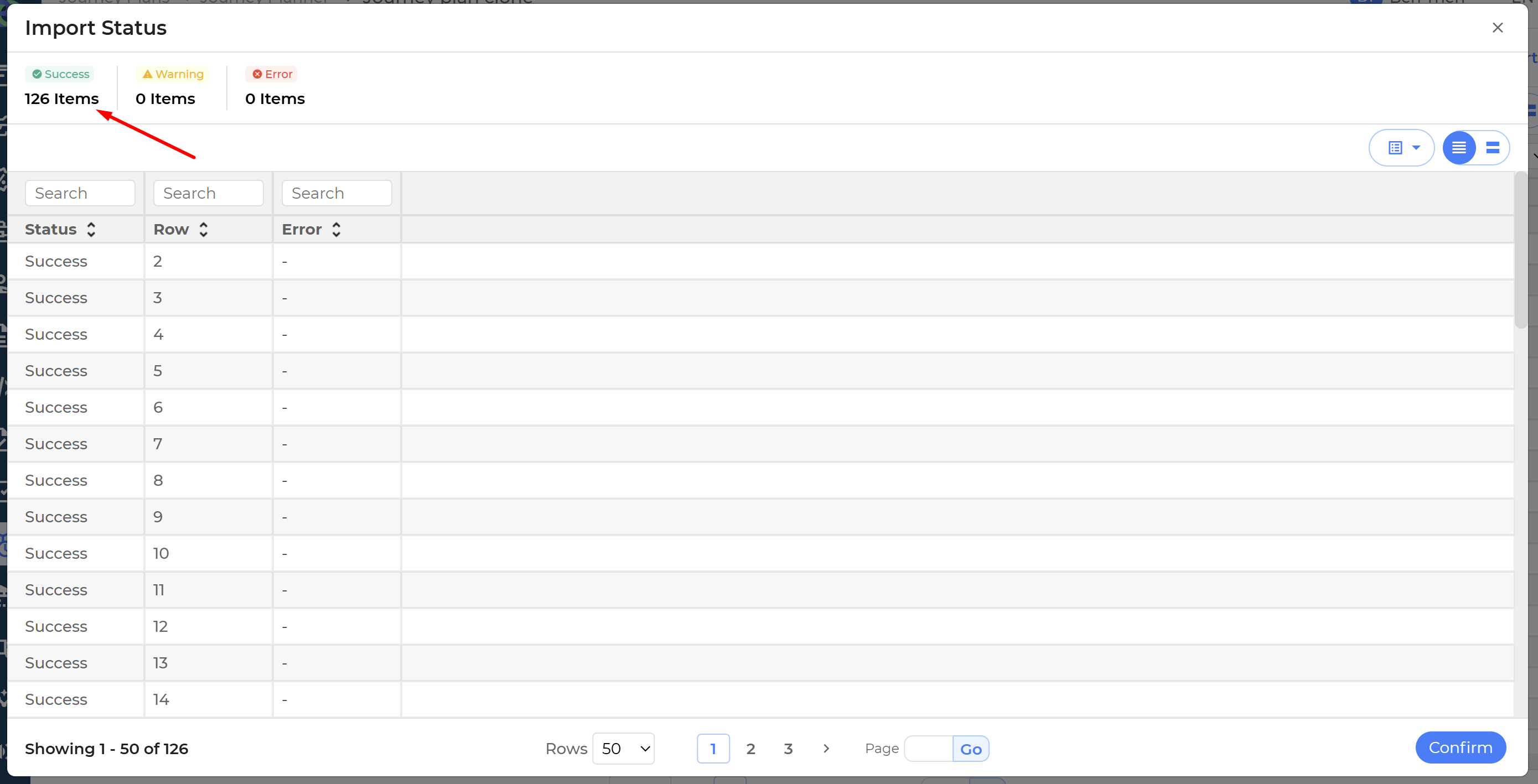
If there is any error when uploading the journey plan, kindly double check all the required details are correct in the excel file.