
Symptoms
You may experience one or more of the following:
- Price tiers remain unchanged after a price list synchronization.
- Updated pricing is visible in the system but not in the mobile app.
- Product prices continue to display old values after syncing.
Steps to resolve
- Open the mobile app.
- Tap the Sync button on the main page.
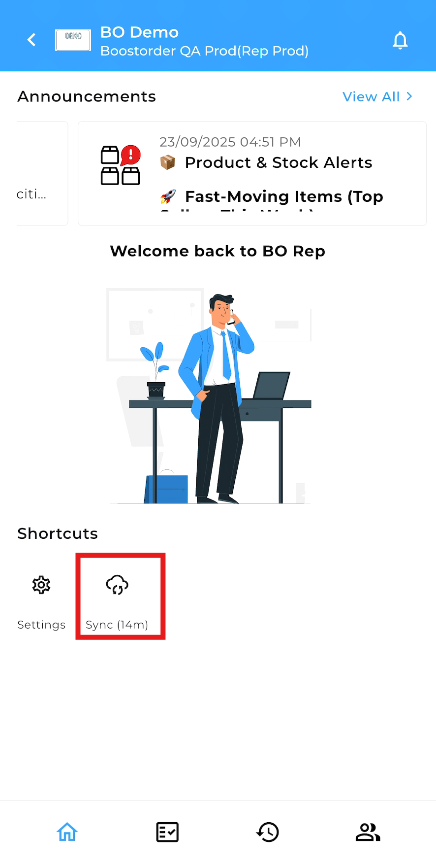
- Wait for the synchronization process to complete.
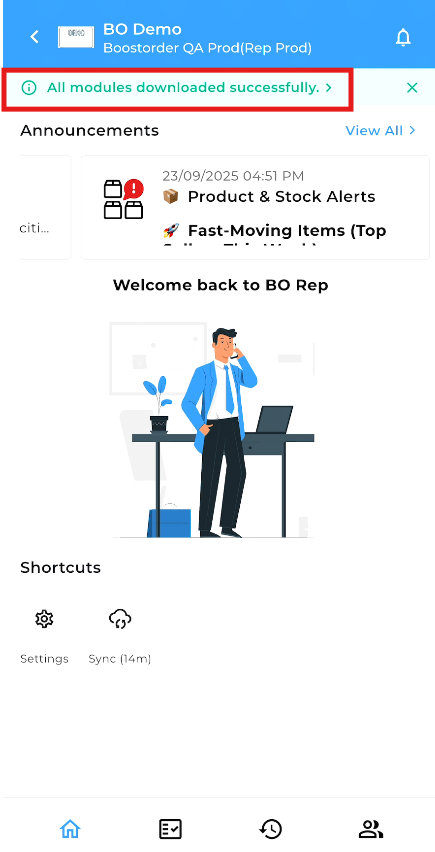
- Wait for the synchronization process to complete.
- Review the affected products.
- Check whether the updated price tiers are displayed.
- If the pricing is still not updated, reinstall the app.
- Uninstall the mobile app from the device.
- Install the latest version of the app.
- Sign in and perform a synchronization again.
- Tap the Sync button on the main page and allow the download process to finish.
- Open the product listing or sales order screen.
- Verify that the updated price tiers are displayed correctly.
- Confirm that product pricing matches the latest synchronized price list.
If the price list still does not update after synchronization, reinstalling the app can refresh locally stored data. In the reported case, the updated pricing became visible after the user reinstalled the application and synchronized the data again.