
Before you begin
- Ensure you have access to the portal.
- Ensure you have permission to create and manage custom fields.
Resolve the issue
- Sign in to the portal.
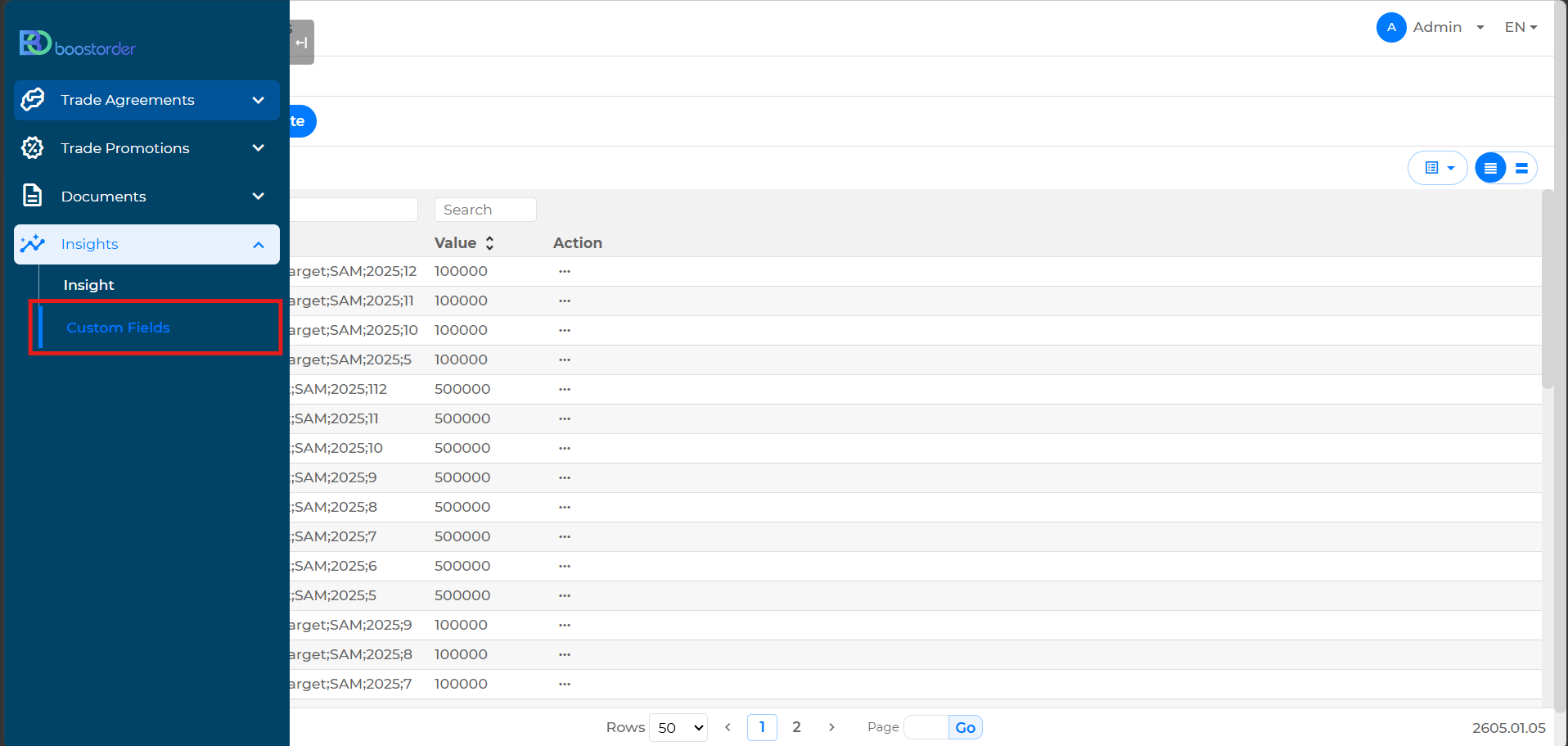
- Navigate to the Custom Fields page.
- Go to Insights.
- Select Custom Fields.
- Create a new custom field.
- Click Create.
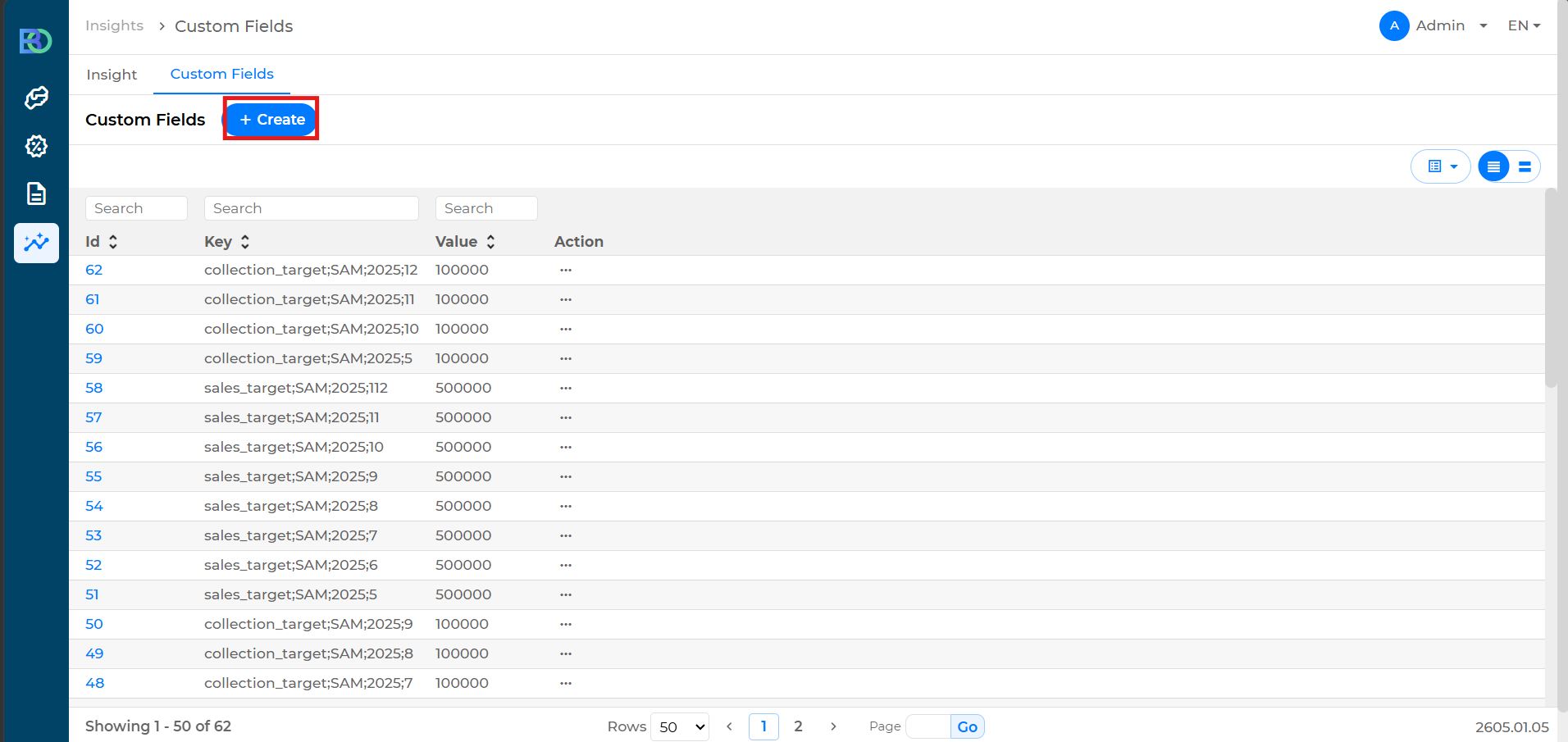
- Click Create.
- Enter the KPI target key.
- In the Key field, use the following format:
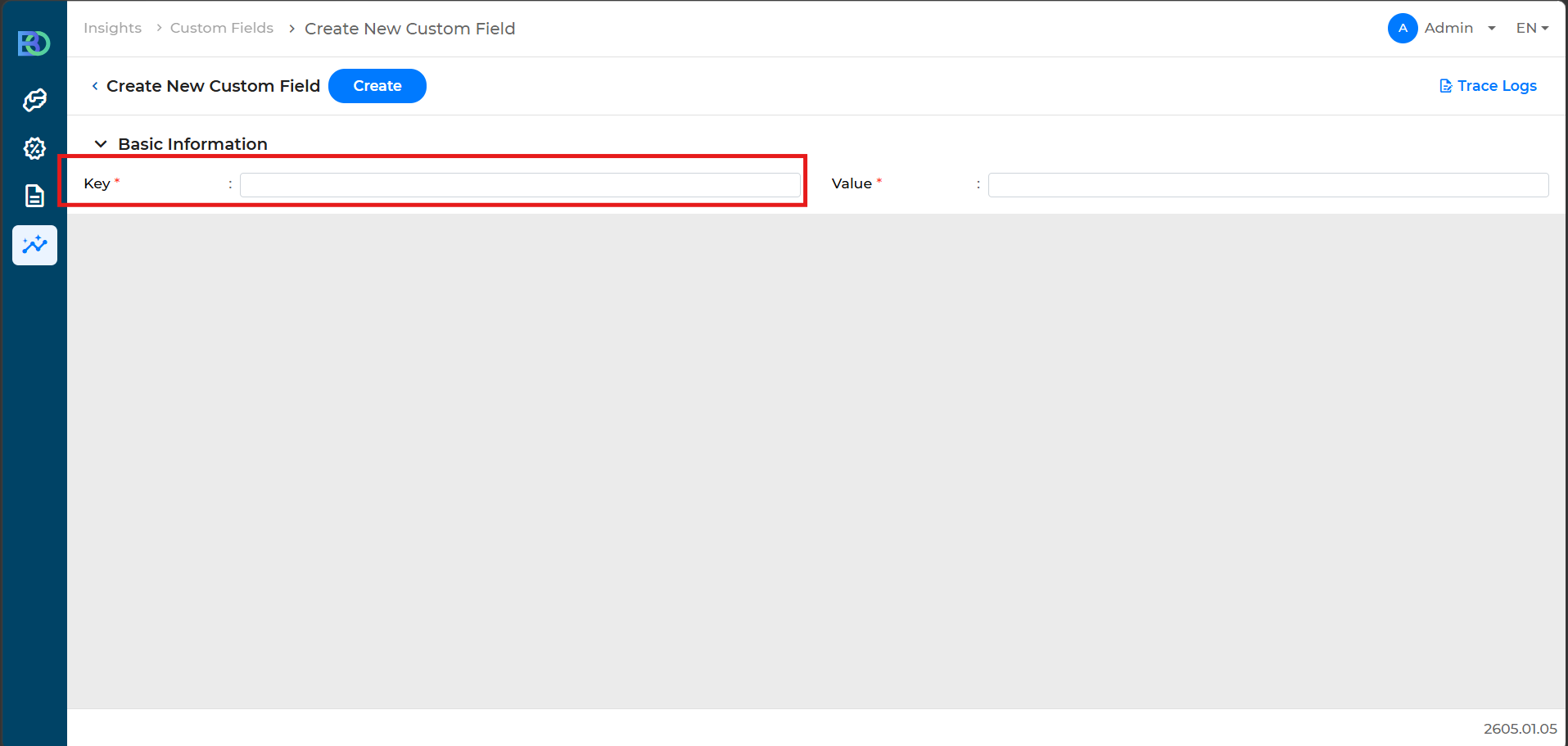
sales target/collection target;agent_code;year;month - Replace the values with the appropriate target type, agent code, year, and month.
- In the Key field, use the following format:
- Enter the KPI target value.
- In the Value field, enter the target amount for the specified month.
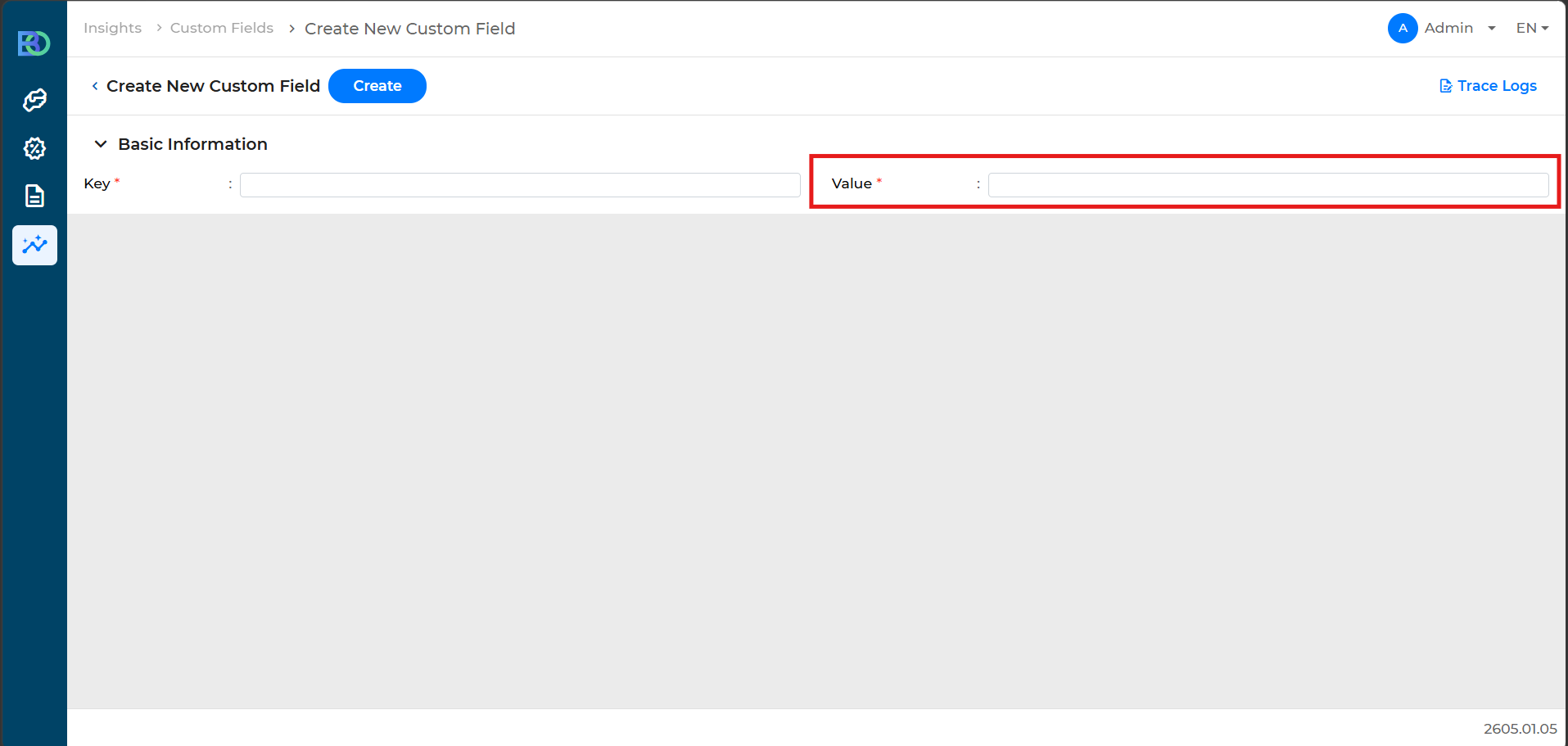
- In the Value field, enter the target amount for the specified month.
- Create the custom field.
- Review the information and save the record.
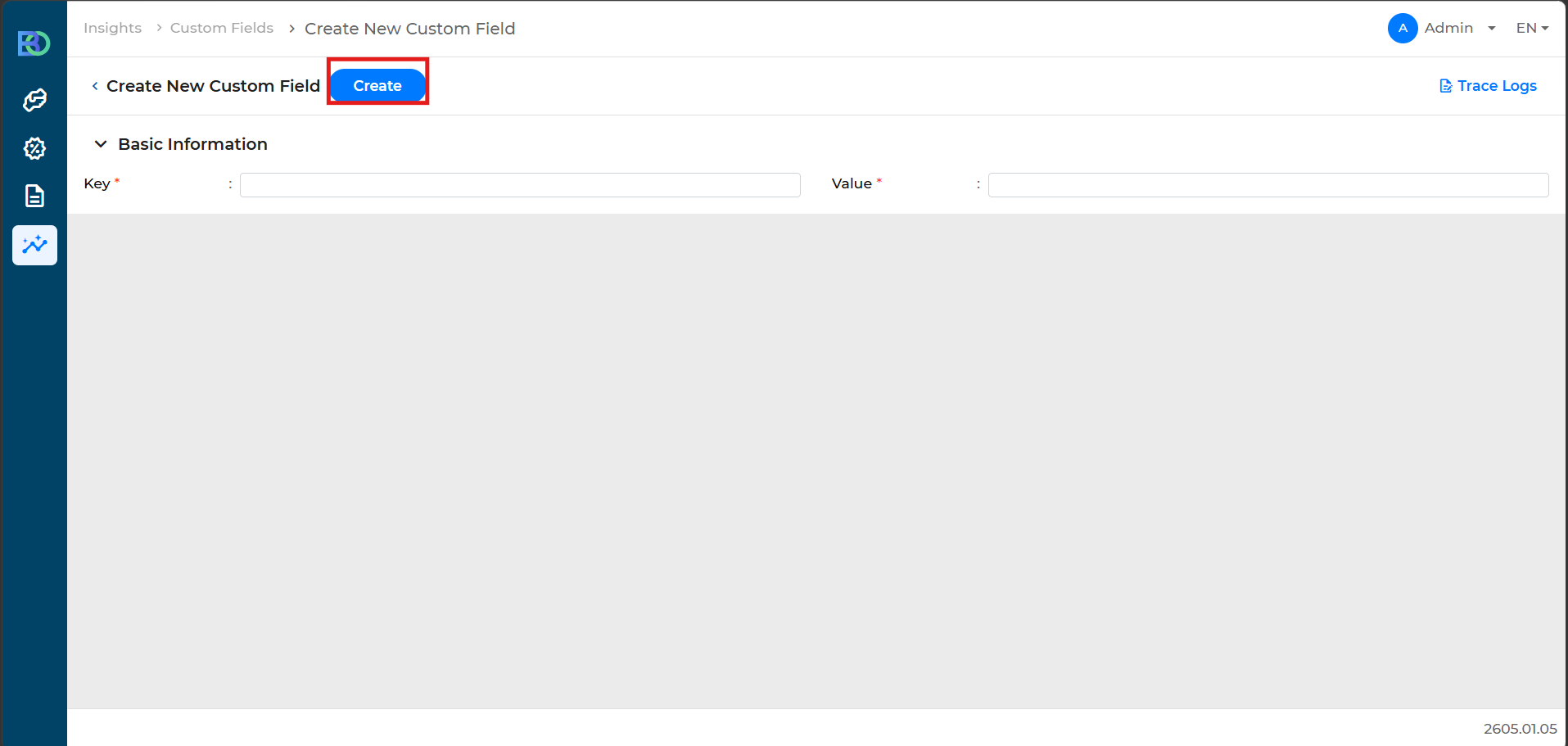
- Review the information and save the record.
Confirm the issue is resolved
- Verify that the new custom field appears in the Custom Fields list.
- Confirm that the correct target value is associated with the specified agent, year, and month.
Additional information
- Create a separate custom field entry for each monthly target that needs to be tracked.
- Ensure the key format remains consistent so targets can be identified correctly by the system.