
Rep V3 App (For Users)
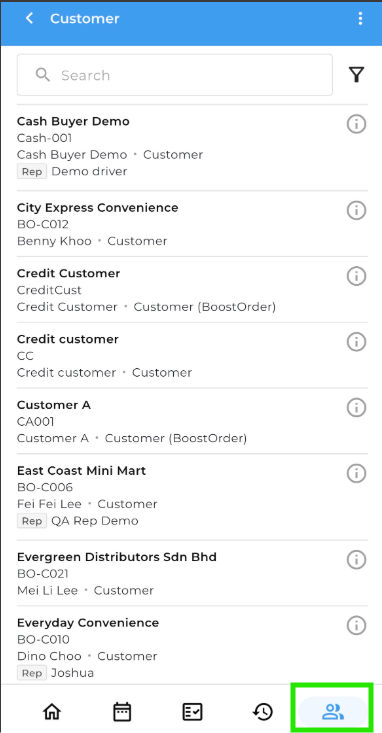
- Head to Customer tab in the application.
-
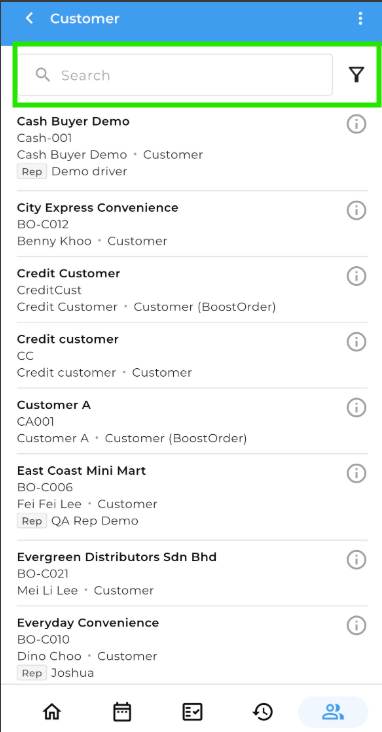
Use the search bar to search for the customer using the Debtor Code.
-
If the customer cannot be found, tap the Sync button on the main page to refresh the data.
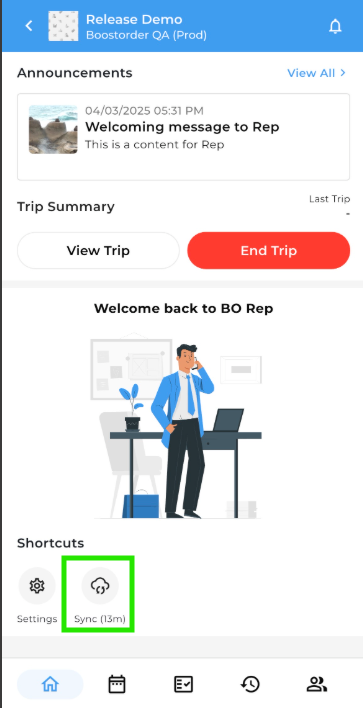
After syncing, search for the customer again.
If the customer is still not visible, please contact your company administrator to verify the customer in the Cloud portal.
Cloud (For Administrators)
Administrators can verify customer records in the Cloud portal.
Navigate to:
Business Partner → Customers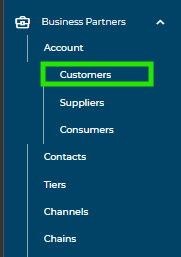
Check if the customer exists
-
Search for the customer using the Debtor Code.
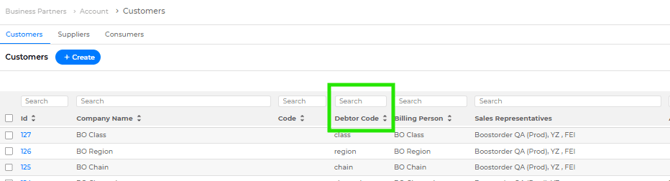
-
If the debtor cannot be found, proceed to the Sync section below.
Check customer status
-
Confirm that the Status is set to Active.

-
If the customer is inactive, update the status or check the Sync section.
Sync (For System Administrators / IT)
If the customer exists in the accounting system but does not appear in the app or Cloud portal, check the sync process.
Verify debtor in accounting system
-
Check your accounting system to confirm the Debtor Code exists.
Check if the Syncer is running
-
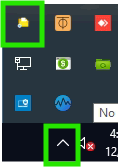
Ensure the Syncer service is currently running.
Run Debtor Sync
-
Open the Syncer.
-
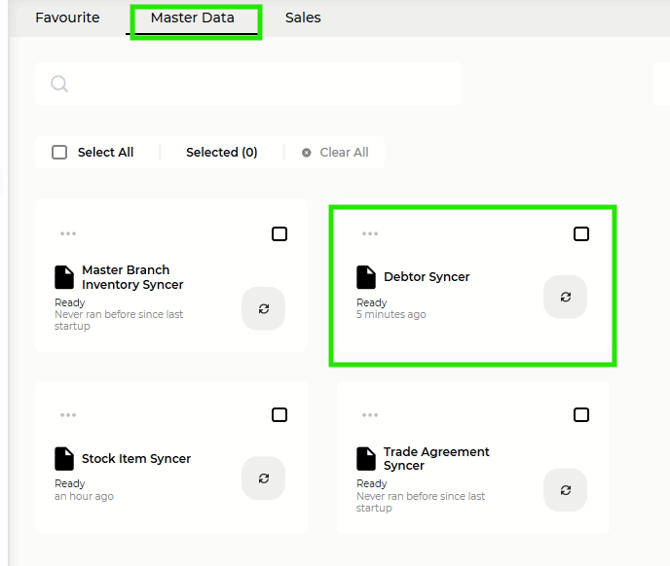
Go to the Master Data tab.
-
Click Debtor Syncer to run the synchronization.
Once the sync is completed, perform another sync in the app and search for the customer again.