
SCSR Calculation
SPSR = [Successful Call / (Planned Call - UC Miss)] * 100
Successful Call = Call that is 20 secs or longer and resulted in a fruitful conversation
ECSR Calculation
EPSR = [Effective call / Successful Call] * 100
Effective call = Call that resulted in invoice being issued within week + 1 day post the week
Note : If the week spans across 2 different month (ie. 29th Nov 2021 - 5th Dec 2021), then the effective call cutoff will be set at month end + 1 day
Accessing Boostorder Rep - Telesales Dashboard
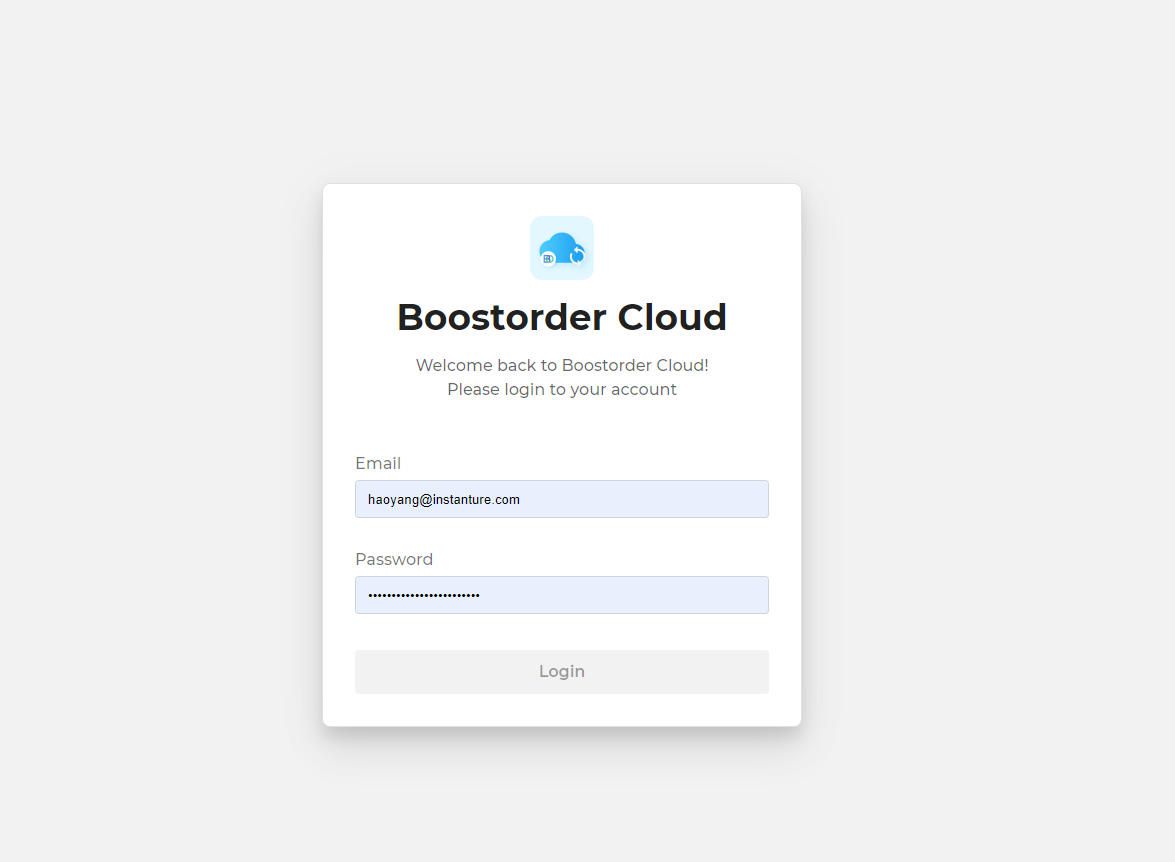
- Reach login page from link provided. (ie.https://portal.boostorder.net/demohmb/login)
- Login using assigned username & password.
Journey Plan View
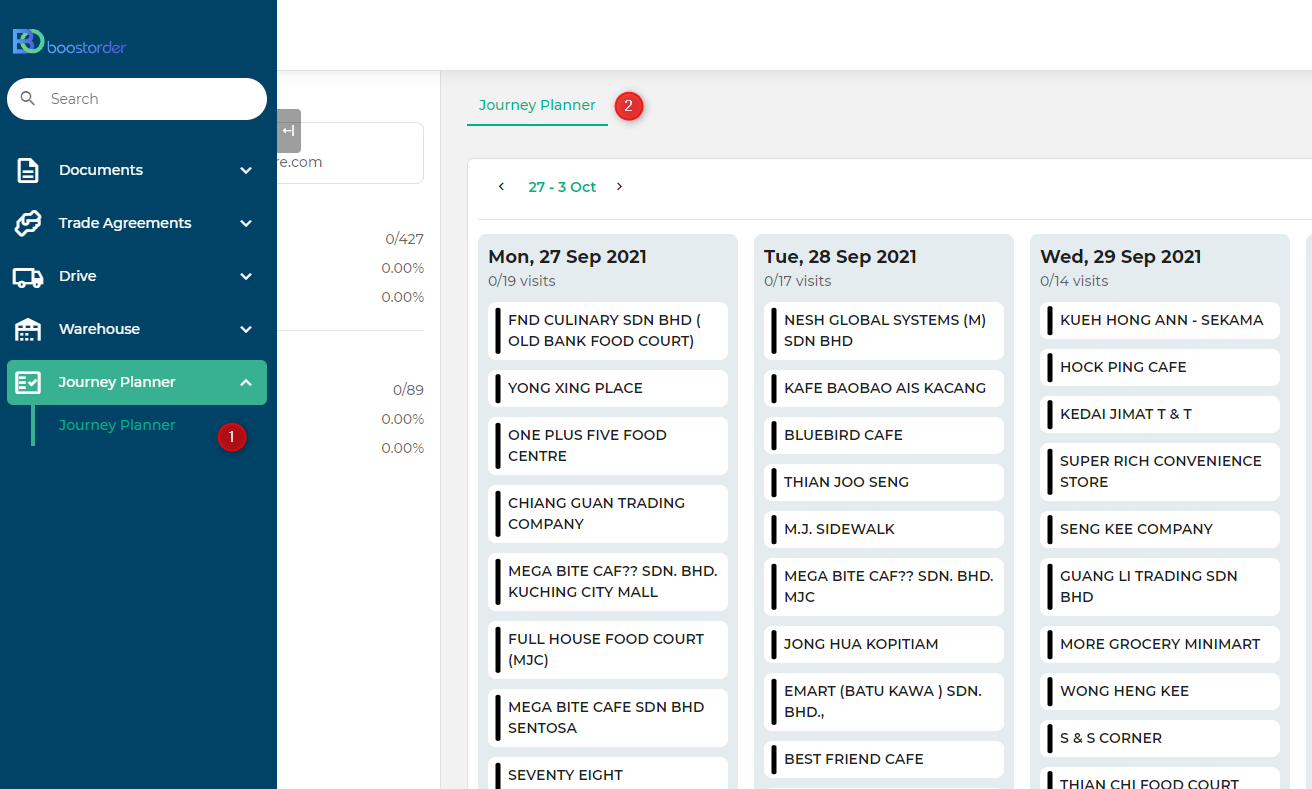
- After succesfully logging in, click on Journey Planner to view outlets to visit.
- View outlets.
Video recording : https://www.loom.com/share/34319453fe5b4a58a1aa633964d4a3b5
Call log - Recording call
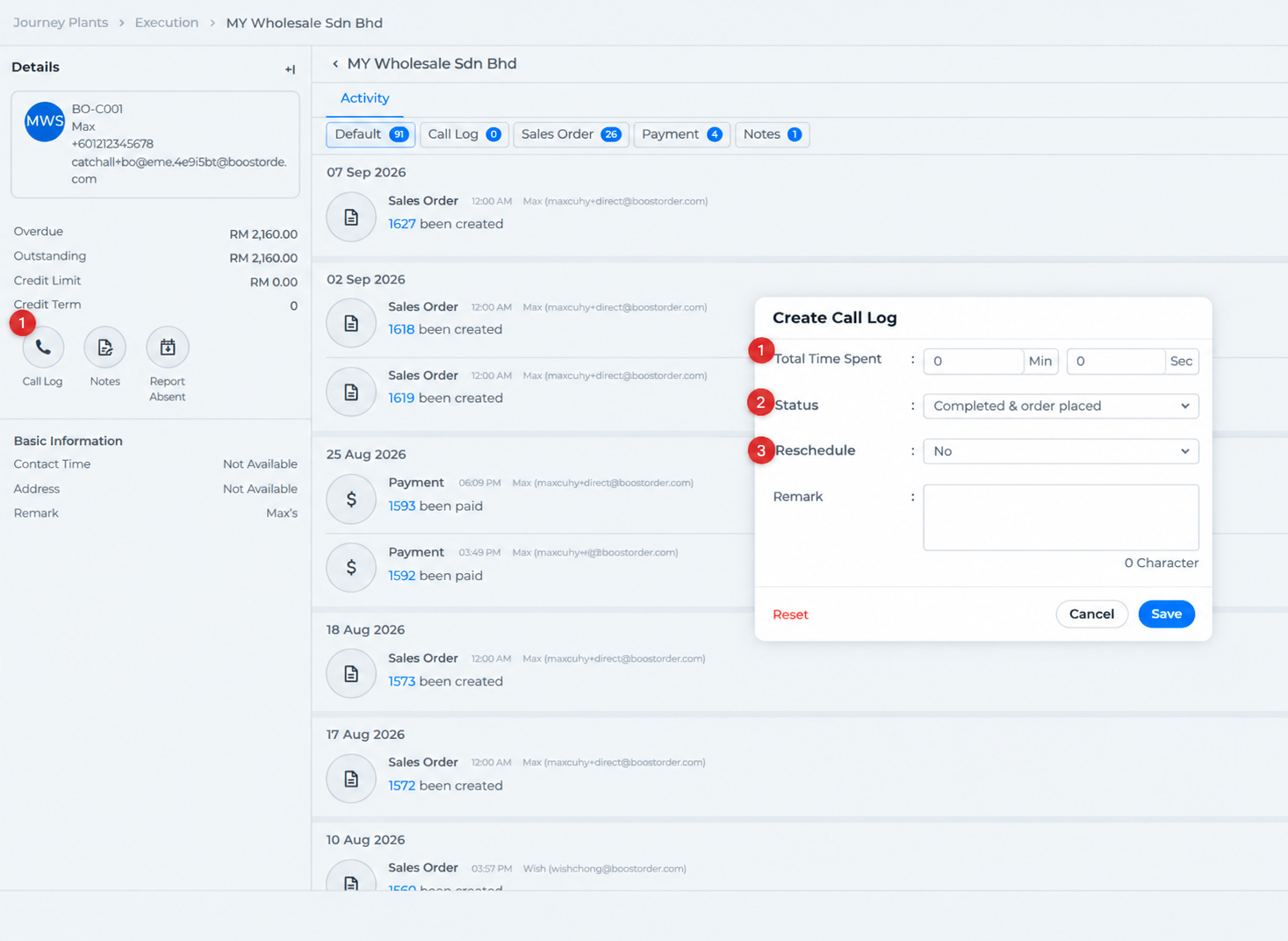
- Click on Call Log
- After calling customer, enter time spent by MINUTES & SECONDS
- Enter status of the call as per conversation with outlet. Refer to table below for description of call status.
| CHECK IN STATUS | DESCRIPTION |
| Completed & order placed | Call is completed and outlet has placed orders |
| Completed & no orders | Call is completed and outlet did not place orders |
| Follow up call | Outlet requires DTR to call back another time |
| Wrong number / person | Wrong contact information provided |
| No pick-up | Call not picked up by Outlet |
| Reject call | Outlet request DTR to stop calling again |
| Outlet permanently closed | Outlet permanently closed |
| Public holiday | Public holiday |
| Medical / annual leave | Medical / annual leave |
| Special event | Special event (eg. Function events, field visit) |
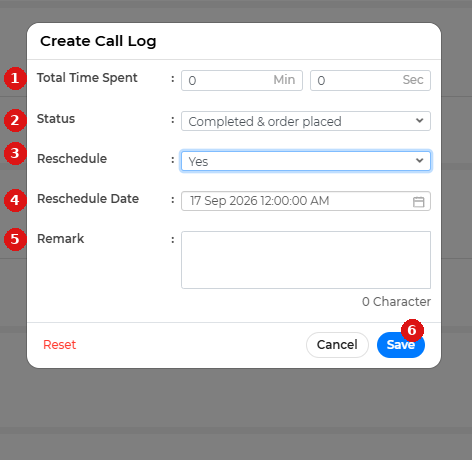
- Enter time spent speaking with outlet
- Enter status per phone conversation
- IF outlet requires a reschedule, select YES
- Enter rescheduled date
- Enter remark
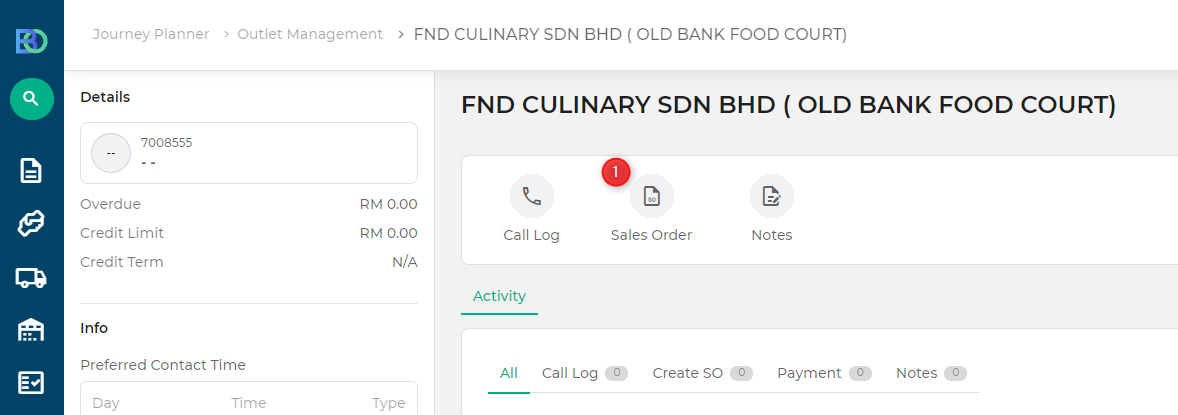
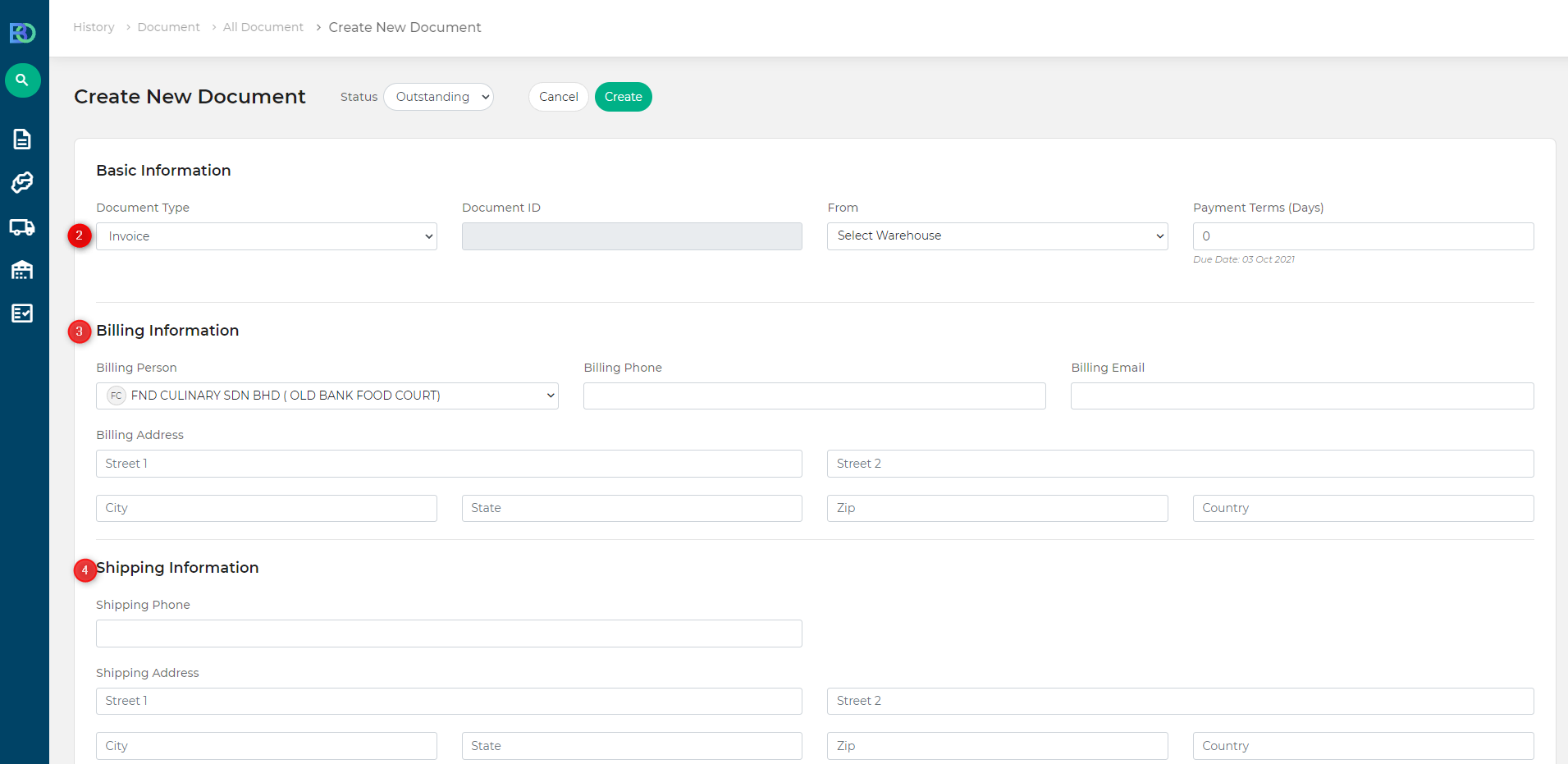
- Select Create SO
- Ensure document type selected is accurate (eg. Sales Order)
- Ensure billing inforation is accurate
- Ensure Shipping information is accurate
Video recording : https://www.loom.com/share/57a10ffb38424927bc42ea63088b8f30
Report Absent
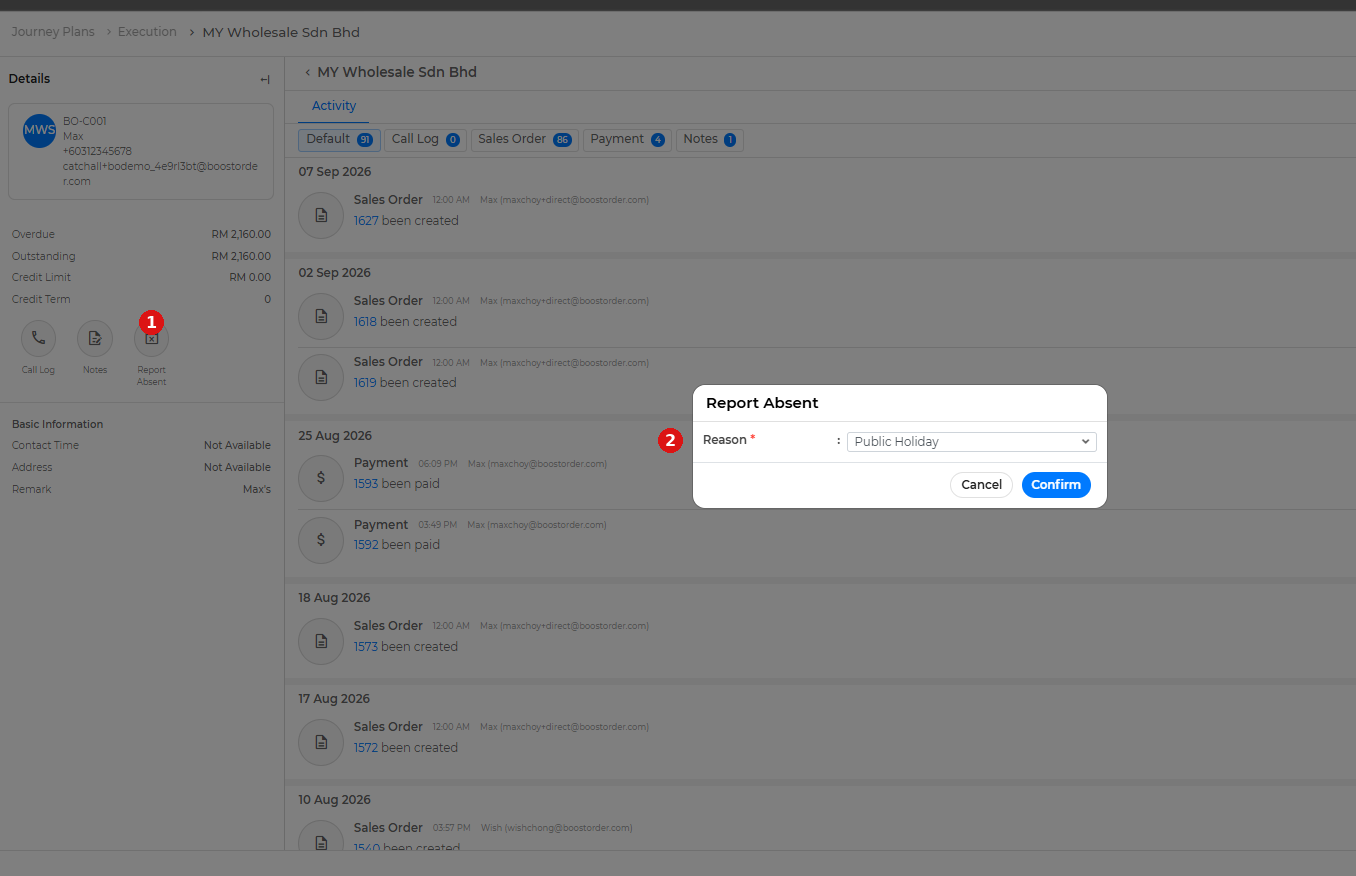
- Click report absent button in the customer page
- Click Report Absent
- Choose Reason
- Click Confirm button